Wireframe Software: 9 Features for Better Web and App Planning
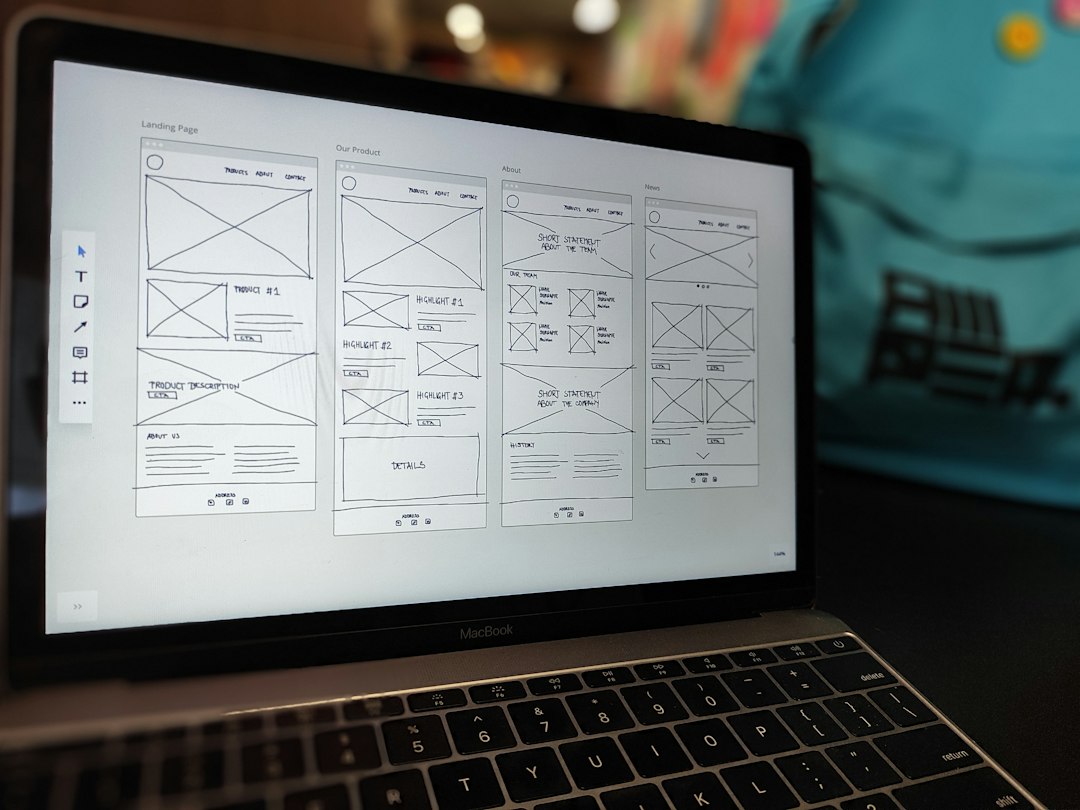
Wireframe software helps product teams map page structure and user flows before they invest in visual polish or code. A wireframe shows where content, controls, navigation, and key actions belong. This guide explains what wireframes are, how to choose a website wireframe tool, and how to use low-fidelity layouts to reduce misunderstandings during product discovery.
We’ll cover 9 capabilities, the difference between wireframes and prototypes, accessibility considerations, and a practical handoff process for design and engineering teams.
What wireframe software is for
A wireframe is a simplified plan for a screen or page. It prioritizes hierarchy, content, and task flow over colors, typography, and final imagery. Teams use wireframes to test whether users can find the next step, understand information grouping, and complete a task before developers build the interface.
Figma’s wireframe and mockup explanation distinguishes an early layout from a polished visual representation. The distinction matters because stakeholders may mistake a high-fidelity mockup for a finished product. Select the level of detail that supports the current decision.
When to create a wireframe
- When teams need to agree on a new feature’s screens and navigation.
- When a workflow has several roles, decision points, or error states.
- When an existing page causes user confusion and needs a redesigned hierarchy.
- When teams want to test content placement before final copy and visual design.
- When a product owner needs a shared artifact for designers, developers, and reviewers.
For example, an account setup flow may have steps for profile details, verification, preferences, and confirmation. A wireframe can show progress indicators, required fields, back navigation, and error messaging. It lets a team review the task before committing to a visual direction.
9 features to compare
- Fast low-fidelity layouts: make it easy to sketch screens without polishing every element.
- Reusable components: support shared navigation, forms, cards, and page patterns.
- Flow mapping: connect screens and states so reviewers can follow a user journey.
- Commenting and collaboration: let product, design, and engineering teams discuss one source.
- Version history: preserve prior options and make design decisions traceable.
- Responsive layouts: model how content changes across desktop, tablet, and mobile.
- Accessibility support: make it possible to annotate labels, keyboard behavior, focus order, and contrast needs.
- Prototype interactions: simulate essential clicks or transitions when flow validation requires them.
- Developer handoff: provide inspectable measurements, assets, and notes without implying that the wireframe itself is production code.
Choose fidelity for the decision
Low-fidelity wireframes work well when a team is still evaluating structure. Use simple shapes and labels to keep attention on the task. High-fidelity wireframes may help when stakeholders need to review content density or near-final behavior. However, visual polish can create premature debate about colors and branding while the workflow remains unclear.
Interactive prototypes add another layer. They help teams test navigation, state changes, and task completion. A prototype remains a simulation, so note what it does not implement, such as server validation or persistence. Avoid asking test participants to evaluate a button’s appearance when the research question concerns whether a user can find the right action.
Make accessibility visible early
Wireframes should include accessibility notes before design handoff. Identify semantic headings, form labels, error associations, focus order, keyboard actions, and screen-reader announcements. A control that looks obvious in a sketch may still be ambiguous when someone uses assistive technology.
The W3C’s WCAG overview introduces accessibility principles and success criteria for web content, including perceivable, operable, understandable, and robust experiences. Wireframes cannot prove conformance, but they can reveal missing labels, confusing sequences, and interaction assumptions while changes are still inexpensive.
A practical wireframing workflow
- Define the user and task: write what the person wants to accomplish and what success means.
- Map the existing flow: include entry points, alternate paths, errors, and exit options.
- Sketch the core screens: focus on hierarchy and essential actions.
- Review with stakeholders: ask if content and sequence support the task, not whether the screen looks final.
- Test with users: observe whether people can complete the flow and where they hesitate.
- Revise and annotate: record decisions, accessibility needs, and responsive behavior.
- Handoff intentionally: explain what is fixed, what remains open, and which states the developer must implement.
Keep the prototype scope small. Test the riskiest question first, such as whether users understand a label or whether a multi-step form feels manageable. A short session with representative users can reveal assumptions that an internal review misses.
Wireframes and product requirements
A wireframe can complement a product requirement, but it should not replace the acceptance criteria. Pair important screens with plain-language behavior: what happens after a selection, how errors appear, which fields are required, and how data is saved. This creates a stronger bridge from design to implementation and QA.
For digital products, Anomoz’s guide to cloud application development decisions covers broader delivery considerations that follow interface planning. Connect the screen flow to integration, privacy, performance, and support needs before development begins.
Common mistakes
- Over-polishing too soon: keep early layouts simple until the task flow works.
- Showing only the happy path: include empty, loading, error, permission, and success states when they affect use.
- Ignoring content: placeholder text can hide layout and comprehension problems.
- Skipping mobile: responsive behavior can change navigation and content priority.
- Handing off without context: explain why a decision was made and which questions remain.
Frequently asked questions
What is the difference between a wireframe and a mockup?
A wireframe emphasizes structure and flow. A mockup emphasizes visual appearance. Teams can use both at different stages of product design.
Do wireframes need to be interactive?
No. Static wireframes work for structure reviews. Add interactions when a team needs to test transitions, choices, or a task sequence.
Can wireframe software create production interfaces?
Some tools support design handoff or code-related workflows, but a wireframe is primarily a planning artifact. Validate the generated implementation separately.
Conclusion
Wireframe software helps teams clarify structure, flow, and accessibility before implementation. Choose fidelity based on the decision, test important journeys with users, and pair screens with behavior notes. A clear handoff can reduce rework while keeping the product focused on real user needs.
Evaluate a website wireframe tool with real work
Choose two representative tasks for a trial, such as onboarding a new user and editing an existing record. Ask a designer to sketch the flow, a product manager to review copy and decisions, and a developer to inspect handoff notes. Measure how quickly each person understands the intended behavior and whether comments resolve in one place.
Test how the tool handles responsive frames, component libraries, version history, export, and access permissions. Ask whether a reviewer can distinguish draft exploration from an approved design. If the tool offers user testing or interactive previews, check whether the team can record observations without overclaiming what the prototype represents.
Use wireframes to reduce uncertainty
Wireframes are most valuable when a team has unanswered questions about information, sequence, or task completion. Write these questions before the design session. For example: Do users understand what information is required? Can they recover from a rejected form? Does the next step feel predictable? A design review that starts with a clear question is more productive than a general request for feedback.
Include realistic content lengths. A page with short placeholder labels may fit neatly, then break when the actual product names, instructions, or error messages arrive. Use representative text, long names, and mobile widths during review. Mark what can scroll and what remains fixed. This helps engineers estimate implementation and prevents surprises late in development.
Handoff should explain states
A single screen rarely describes the full interface. Add states for loading, empty results, permission errors, offline behavior, success, and destructive actions where they matter. Explain what the user can do from each state and what data the system saves. These notes create test cases and clarify dependencies.
Identify components that should be reused, but avoid turning every visual element into a design system debate. Start with repeated patterns that appear across screens. Document spacing or behavior only when it improves consistency. Give developers the context they need, including supported breakpoints, focus behavior, and open product questions.
Finally, ask a user who did not attend the design meeting to follow the wireframe and describe the next action. If the user cannot, the team may need clearer labels, hierarchy, or navigation before implementation begins.
Plan a review with real users
Choose participants who resemble the people expected to use the product. Give them a goal without explaining every screen. Observe where they look, what they call an action, and whether they can recover from a mistake. A wireframe test does not need to prove every visual detail. Its purpose is to find problems with layout, labels, and task sequence while the team still has room to change them.
After each session, distinguish observed behavior from interpretation. A user may hesitate because a label is unclear, because the task is unfamiliar, or because the prototype does not behave like a real app. Record what happened and ask a follow-up question before deciding what to change. This keeps design revisions tied to evidence.
Compare wireframe software and workflow fit
List the work the tool must support: individual sketching, live collaboration, component reuse, interactive testing, comments, exports, and developer inspection. Not every team needs every feature. A small product team may value speed and a shared canvas; a larger organization may need libraries, permissions, audit history, and design system governance.
Test collaboration across roles. Ask a product owner to comment on a task flow and a developer to find implementation notes. Confirm that approved frames are easy to distinguish from discarded experiments. If the tool stores files in the cloud, review user access, external sharing, and retention policies. For regulated product work, security review belongs in procurement, not after rollout.
From wireframe to implementation
Before handoff, map each important screen to user actions, data requirements, and system responses. Include copy, validation rules, permission states, and service dependencies where they change the interface. This lets engineering estimate the work and QA plan coverage. It also helps product managers see which unanswered questions could block implementation.
Set a short review meeting after the first working build. Compare the implemented flow with the approved wireframe and explain any changes. Some differences will be necessary because of performance or technical constraints. Record them so later users can understand why the product differs from the design artifact.
Connect wireframes to product strategy
Do not wireframe every requested feature before confirming the product problem. Map the user’s current path and identify where the task fails or creates unnecessary effort. A smaller change to navigation or form wording may solve the issue better than a new screen. Use wireframes to compare meaningful options, and record why the team selected one.
For a larger product, connect the key screens to measurable goals such as successful task completion, reduced support requests, or fewer incomplete submissions. Avoid choosing a visual direction based only on stakeholder preference. Use user feedback and product data where available, while recognizing that a prototype cannot show actual speed, reliability, or system behavior.
Keep the design artifact manageable
Organize files by feature, release, or workflow so reviewers can find the current version. Archive discarded explorations but make the approved path obvious. Use clear names and concise notes instead of placing long product specifications inside the canvas. Link to requirements, user research, and engineering tickets where the full context belongs.
Review whether a reusable component still fits as the product changes. A shared component can reduce inconsistency, but exceptions may be justified for a different task or user group. Document the reason, then revisit it as the design system evolves. This helps wireframe software support exploration without forcing every interface into one pattern.
Before launch, compare the implemented product with the approved interaction flow and verify accessibility with appropriate testing. A design file can make intentions visible, but it cannot confirm keyboard behavior, screen-reader output, or real-world readability by itself.