
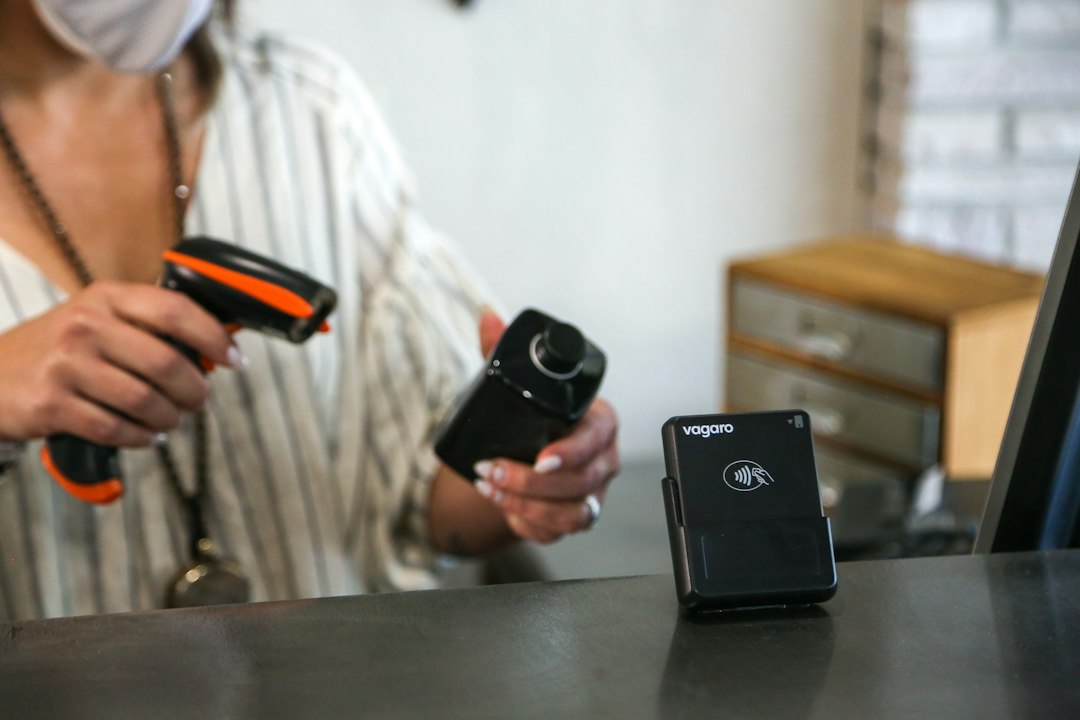
Inventory Tracking Software With Barcode Scanner: A Scan-to-Stock Setup Plan
Inventory Tracking Software With Barcode Scanner support connects a physical scan with a stock record and a defined action. It can help staff receive, move, pick, and count goods with less typing. However, the scanner only captures a code. The software and workflow decide what that code means and whether the action is valid.
This article explains how to set up the item data, labels, devices, and stock rules. It also includes a receiving-to-count example, common scan errors, and a rollout plan that works for a small warehouse or stockroom.
What happens after a barcode scan?
A scanner reads a pattern and returns data. In a basic setup, it may act like a keyboard and enter text into the active field. A more integrated app can use the scan within a specific warehouse task.
For example, scanning a product during receiving should not behave like scanning it during a pick. The item may be the same, but the intended movement differs. The app needs the task context.
Odoo’s Barcode documentation gives an example of linking barcodes with products, packaging, and inventory movements. Use those distinctions when testing any platform.
Therefore, evaluate the software and scanner together. A device that reads a label perfectly can still feed the wrong field or create the wrong action. The complete task matters more than the scan beep.
Build a clean item and packaging structure
Start with one stable internal item code for each product you need to distinguish. Keep the barcode value in its own field. Also retain supplier references when they help identify deliveries.
Then define packaging. An individual unit, inner pack, and case may have different barcodes and quantities. The system should map each code to the right item and unit conversion.
For example, scanning one case of twelve should not add one individual unit. The screen should show the interpreted quantity before confirmation. This gives staff a chance to catch a mapping error.
Next, check duplicate codes. Two active items should not share a code unless the system has an explicit, suitable way to resolve it. An accidental duplicate can make every later scan unreliable.
Choose barcode types for the actual task
One-dimensional and two-dimensional codes support different data and reading needs. The right choice depends on your labels, devices, and trading requirements. Do not assume every scanner reads every code.
GS1’s explanation of GTINs and barcodes helps distinguish the identifier from its scannable representation. That distinction matters when choosing internal labels or using supplier codes.
For internal bins, you may use a simple location code. For products exchanged with customers or retailers, you may need an agreed identification scheme. Confirm those requirements before printing a large label batch.
Also plan lot, serial, and expiry capture. A code may contain more than a product identifier, but the app must parse those fields correctly. A successful read does not prove correct interpretation.
Design labels that workers can actually scan
Test label size, contrast, placement, and material in the work area. A clean label on a desk may behave differently on a curved package, dusty bin, or cold surface.
Keep human-readable information where it helps staff confirm the item. A short description and item reference can support a manual check when the scanner fails. Avoid crowding the code with unnecessary decoration.
Next, test the labels after normal handling. Include worn packaging and the viewing distances staff use. Reprinting may solve a damaged label, but recurring damage suggests a placement or material problem.
Control the print template. If several users adjust the format independently, scan quality and data content can drift. Name an owner for label changes and test revisions before wider use.
Match scanner hardware to the workload
A phone camera may suit occasional scans. A handheld scanner can suit repeated work, while fixed equipment may serve a packing station. Choose based on the task and environment.
Check grip, gloves, reach, battery life, charging, and drop exposure. Also test the exact code types you use. A scanner selected for one-dimensional labels may not support the two-dimensional codes on future packaging.
Next, confirm how the scanner connects. USB, Bluetooth, and integrated mobile devices have different setup needs. A keyboard-style scanner can enter data into the wrong application if the user changes focus.
Therefore, test device recovery. Disconnect and reconnect it, restart the app, and try a low-battery handover. Staff need a clear way to resume work without duplicating the last transaction.
Receiving should check the expected goods
Open the relevant purchase or receipt task before scanning. The software should compare the scan with expected items and show the quantity. Unknown or unexpected goods need a review route.
For example, an extra case may reflect an overdelivery, a wrong product, or a pack mapping error. Do not let every scan add stock without considering those possibilities.
Next, capture required lot or serial details at the right stage. Missing them during receipt may make later traceability impossible. The system should make the requirement clear before staff close the task.
Odoo’s guide to barcode receipts and deliveries shows an official scan-based flow. Ask your vendor to demonstrate a partial delivery and an unexpected item, not only a perfect receipt.
Location scans make movements more reliable
A product scan identifies the item. A location scan identifies the source or destination. Using both can help prevent staff from recording a move to the wrong shelf.
For instance, a putaway task may ask for the destination bin and product. The app should reject a product code in the location field or explain the mismatch. A generic text field can hide that mistake.
Then test one product stored in several bins. The system should preserve the separate balances. A building-wide quantity does not tell a picker where to find the goods.
Anomoz’s article on Odoo Inventory covers broader location and stock setup. Clear location data makes scanning more useful.
Picking should confirm item, quantity, and source
A pick task needs the right order and stock location. Scanning should confirm the intended product and any required lot or serial. The workflow should also explain how staff enter quantities.
Some tasks use one scan per unit. Others let the user scan once and enter a quantity. Each can work, but the screen should make the selected mode clear.
Next, test a repeated scan. Does it add another unit, show a duplicate warning, or do nothing? The correct behavior depends on the task, but staff must understand it.
Also test a shortage and a wrong variant. Users need a valid exception path. They should not have to scan another item or report a false quantity just to finish the order.
Counts and corrections need review controls
During a count, scans record what staff find. The system then compares that observation with expected stock. Keep the observed quantity separate from the posted correction until the required review occurs.
For example, a missing scan may mean the item is absent, hidden, or unreadable. A recount can help resolve the difference. Do not automatically treat every unscanned item as lost.
Next, define who approves adjustments and which reasons they use. A wrong opening balance, missed receipt, and damaged item should not all become an unexplained correction.
Retain the original count, reviewer, and final adjustment. This history helps identify recurring process problems. A current stock total alone cannot explain why the balance changed.
Handle offline work and duplicate uploads
Warehouse coverage can vary between racks and loading areas. If the app supports offline work, make its sync state visible. Staff need to know which transactions remain pending.
Then test a conflict. Let one user move stock offline while another allocates the same goods. The software needs a way to resolve the competing actions and alert the right person.
Also retry a transaction after a timeout. The system should recognize an already accepted event instead of posting it again. A stable transaction reference helps make retries safe.
Keep manual fallback procedures short and clear. If a device fails, staff should know how to record work and reconcile it later. A fallback should preserve evidence rather than create another untracked spreadsheet.
A scan-to-stock example
Suppose a stockroom receives five cases of fittings, each containing twelve units. The purchase order expects sixty units. A case barcode maps to the product and the case quantity.
First, scan one case and confirm that the receipt shows twelve units. Then complete the remaining receipt and put the goods into two labelled bins. The location balances should add up to the accepted quantity.
Next, pick an order for three units. Scan the source bin and deliberately scan a similar fitting. The app should show the mismatch before the worker confirms the pick.
Now report one damaged unit during a count. Keep it separate from a general stock difference and move it through the approved status. Finally, retry the last upload to confirm that it does not post twice.
This small scenario tests packaging, locations, error prevention, corrections, and sync. It offers a stronger comparison than asking whether the software “supports scanners.”
Roll out by task rather than the whole building
Choose a product group and one process, such as receiving or picking. Clean the item and barcode mappings, print labels, and train a small team. Then compare the results with checked physical stock.
Next, review every mismatch during the pilot. Separate poor labels from wrong data, device problems, and unclear workflow. Each cause needs a different fix.
Expand only after staff can handle exceptions without outside help. A system that works only when the project lead stands nearby is not ready for full use.
Anomoz’s article on cloud inventory management explains related system ownership questions. Decide which platform owns stock before connecting more capture devices.
Costs and integration decisions
Include software, scanners, printers, labels, charging equipment, network work, migration, and training. Ask about extra charges for mobile users, warehouses, or transaction volume. Also include ongoing label and device support.
Compare the time per completed task, including exceptions. A quick scan that creates a long correction queue may not improve the process. Use your own baseline rather than assuming a universal saving.
If customer or approval workflows need a tailored connection, custom crm development may support that handoff. Keep inventory transaction rules and barcode mappings under clear ownership.
Finally, request exports of item mappings, locations, transactions, and corrections. Your records should remain usable if you change scanners or software later.
Frequently Asked Questions
Will any barcode scanner work with inventory software?
No. Confirm supported code types, connection methods, devices, and app behavior. Test the exact scanner and labels within a real receipt, pick, and correction workflow.
Does scanning a product automatically update stock?
Only if the software maps the scan to a defined stock action. A scan can also search or confirm an item. The current task determines what should happen.
Can Barcode Inventory Tracking Software handle cases and units?
It can if packaging codes and conversions are set up correctly. Test both receipt by case and picking by unit, including a partial case and a repeated scan.
Make every scan part of a clear task
Good Inventory Tracking Software With Barcode Scanner support connects identity, quantity, location, and intent. Build clean mappings and test real exceptions first. Then expand from a workflow that staff can perform and explain.



