
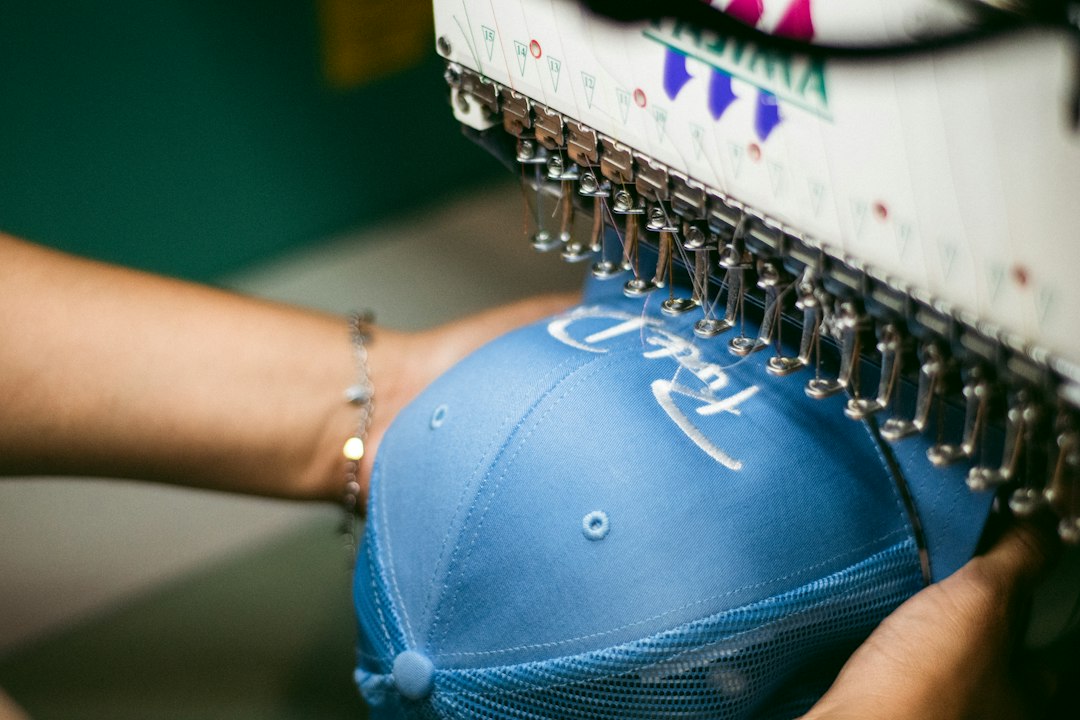
Embroidery Digitizing Software: 9 Checks for Clean, Production-Ready Stitch Files
Embroidery digitizing software converts artwork into stitch instructions that an embroidery machine can follow. The quality of that translation affects outlines, fill coverage, thread changes, registration, production time, and how a design looks on a specific fabric. A file that looks correct on screen can still pucker, break thread, or lose detail when stitched.
This guide explains the main functions of embroidery digitizing software, how to assess output quality, and what to test before adopting a tool. It also covers file compatibility, production controls, common mistakes, and when a business may need a custom workflow around its digitizing process.
What digitizing software actually does
Digitizing is more than converting an image to a machine format. The operator defines stitch objects, stitch direction, density, underlay, pull compensation, trims, color sequence, and machine stops. Those choices tell the machine how to build the design from thread. Software can automate parts of the process, but an experienced digitizer still needs to consider fabric, garment construction, design size, thread, stabilizer, and machine behavior.
Raster artwork such as a JPEG is made from pixels; vector artwork describes shapes and paths. Neither automatically contains appropriate stitch logic. Automatic conversion can be useful for simple artwork or a first pass, but small lettering, gradients, thin outlines, and overlapping shapes often need manual edits and test stitching.
9 checks when comparing embroidery digitizing software
1. Object-level editing
Check whether the tool lets users edit individual shapes and stitch objects rather than flattening a design into one uneditable result. Object properties should include stitch type, angle, density, underlay, and sequencing. Select a sample logo with an outline, filled area, and lettering. Ask a digitizer to change one object and inspect whether the edit remains predictable.
2. Stitch types and path control
Running stitches, satin stitches, and fill stitches behave differently. Satin works for narrow columns and lettering, while fill stitches cover larger areas. Running stitches can define details, but a long unbroken run may snag or look uneven. Evaluate the available stitch patterns, direction controls, entry and exit points, travel paths, and automatic trims. The goal is a logical sequence that reduces unnecessary jumps without creating visible travel stitches.
3. Density, underlay, and compensation
Density affects coverage and stiffness. Excessive density can cause thread breaks, needle stress, or puckering; too little may expose the garment. Underlay stabilizes the design before top stitches cover it. Pull compensation accounts for fabric movement as stitches pull inward. These are not universal presets: settings depend on material, design scale, thread, stabilizer, and machine. Look for editable values and a way to save tested recipes.
4. Lettering and small details
Text is one of the easiest areas to judge in a demo. Test the actual smallest lettering size you expect to produce, including curved text and mixed weights. Review column width, joins, spacing, and readability after stitching. Avoid choosing software based only on its font catalog. A large number of decorative fonts does not guarantee that they stitch cleanly at production size.
5. Machine formats and export reliability
Confirm that exports match the machines in the shop, including supported formats and color-change or stop commands. Common machine families use different formats, so verify support with the machine manufacturer or a known-good test file. Check whether the software preserves design size, color order, trims, and stitch count when reopening an exported file. Keep native editable files as well as production exports.
6. Simulation and production preview
A stitch simulation can expose sequencing problems, long jumps, and excessive trims before a sample is sewn. It cannot perfectly predict fabric distortion or thread behavior. Use it as an inspection tool, then sew a physical sample using the intended garment, stabilizer, thread, needle, hoop, and machine. Keep the sample and settings as a reference for repeat orders.
7. Artwork cleanup and vector support
Useful tools can simplify paths, remove stray points, create outlines, and support common image and vector formats. Still, avoid treating automatic tracing as finished digitizing. A useful workflow lets the operator compare the source artwork with stitch objects and correct edges. Make sure imported files retain color distinctions and scaling, and confirm that resizing does not produce unsuitable stitch density.
8. Learning curve, licensing, and collaboration
Assess how quickly a new operator can learn core edits, whether the vendor offers training, and how licenses work across workstations. If jobs pass between sales, digitizing, and production, check comments, versions, and file naming conventions. Clarify whether projects are stored locally or in the cloud, who can access customer artwork, and how backups and transfers work.
9. Cost and workflow fit
Compare total cost, not just the initial license: training, upgrades, support, compatible hardware, and time spent correcting files all matter. A small shop with predictable logos may need a simpler package than a production studio handling complex multi-head runs. Run a pilot on real jobs before standardizing. For print and production workflows, see Anomoz’s articles on screen printing software and laser cutting software.
A practical test before purchase
Prepare three representative designs: simple text, a medium-complexity logo, and a design with small details or color overlaps. Set acceptance criteria before the vendor demonstration. For example, define minimum readable text size, acceptable thread changes, file formats, and who approves a stitched sample. Ask the vendor to show the complete edit-to-export workflow, not a prepared design.
- Import the actual source artwork and confirm dimensions.
- Edit stitch angle, density, underlay, and sequence on separate objects.
- Export to the target machine format and reopen the result.
- Run a simulation, then stitch on the intended substrate.
- Record the settings, observed defects, and time required for corrections.
Include the production operator in the decision. A digitizer may find a workflow intuitive while the person loading machines encounters ambiguous color stops or inconsistent filenames. Capture both perspectives.
Common production errors to prevent
One mistake is scaling a finished stitch file substantially without re-digitizing. Stitches do not always scale proportionally, so a smaller design can become crowded and a larger one can lose coverage. Another is relying on defaults across different fabrics. A cap, polo shirt, towel, and lightweight performance fabric can require different sequencing and stabilizing choices.
Color management can also create avoidable confusion. A thread chart on screen may not match the physical shade under workshop lighting. Use thread codes in job records and verify the actual cone before production. Finally, do not skip test stitching for a new material or a changed design. A short sample can reveal registration or tension issues before a whole order is run.
FAQs
Can embroidery digitizing software automatically convert a logo?
Many tools offer automatic conversion, but output quality depends on the art and the production requirements. Simple shapes may need few changes; small text and detailed logos usually need manual editing and a stitched sample.
Which embroidery file format should I choose?
Use a format supported by the specific machine and workflow. Confirm with its documentation, and keep an editable native project file so future changes do not depend on a flattened production file.
Does software determine stitch density for every fabric?
No. Software may suggest values, but density, underlay, and compensation should be tested for the design, material, stabilizer, thread, and machine combination.
How can a shop reduce thread breaks?
Inspect stitch density, path sequencing, needle and thread condition, tension, and stabilizer. Track failures by design and machine so the team can distinguish a digitizing issue from a maintenance or material issue.
Conclusion
Embroidery digitizing software should give operators control over stitch objects, sequencing, machine exports, and revision history. Evaluate it with real artwork and production samples, then document settings that work for each material and machine. The right choice is the one that helps the team create repeatable files and catch problems before a full run, not simply the one with the most automated buttons.
Improve file consistency with a production recipe
A repeatable digitizing result depends on more than the software. Capture a recipe for each common combination of garment, fabric weight, stabilizer, needle, thread, hoop, machine, and design scale. Include expected stitch count, color sequence, trims, and any special handling. Store the editable project and the machine-ready export together, with a clear revision identifier. This gives the next operator enough context to reproduce the result or investigate a quality variation.
Use a controlled sample approval step for new designs and material changes. Photograph the approved sample under consistent lighting, record the thread codes, and note any acceptable deviations. If a customer requests a size change, treat it as a new test rather than automatically resizing the existing file. Small elements may need different stitch logic at a smaller scale, while a large fill can require a revised path or density to avoid stiff fabric.
Quality checks from screen to sewn product
Establish a short preflight check before a file reaches production. Confirm design dimensions, machine format, color order, stop commands, stitch count, and the approved revision. Inspect simulation for jumps, trims, concentrated density, and awkward travel. After stitching, review registration, edge quality, coverage, thread breaks, puckering, backing visibility, and wash performance when the product requires it. Keep defect labels consistent so the team can identify whether recurring failures come from digitizing, setup, materials, or machine maintenance.
Do not overfit settings to a single sample. A result that looks good on one garment color may expose gaps on another, and a cap panel behaves differently from a flat shirt front. Use a small matrix of representative combinations for repeat customers. When production volume justifies it, document a first-piece approval for each run and define who may release the remaining quantity.
Balancing automation with digitizer review
Auto-digitizing can shorten the first pass for simple art, and batch conversion may help with standardized designs. Create acceptance rules before relying on it: which kinds of art can proceed with light editing, which require full manual digitizing, and which must be declined or redesigned. Keep the source image, generated file, and reviewer edits so a later change can be traced. Automation is useful when it reduces routine steps while leaving visible opportunities to correct uncertain output.
Evaluate productivity with completed, acceptable stitch files rather than the number of conversions per hour. A faster first pass that creates rework or customer returns may cost more overall. Track edits per design, test-sew defects, and time from approved art to production release across a sample of jobs.
Questions for a vendor demonstration
Ask the vendor to import one of your real logo files, build a design with small text and a border, export to the target machine, and reopen the output. Ask what happens to object editability, sizing, trims, and color stops. Request sample projects and licensing terms in writing. Confirm whether support covers digitizing technique or only software operation, and how user files are backed up or transferred if a workstation is replaced.
Plan repeat orders and customer approvals
For repeat work, keep a customer-approved master design and record the conditions under which it was tested. A reorder should confirm size, garment, thread colors, placement, and quantity instead of assuming every prior setting still applies. If the customer changes the garment or requests a different placement, flag the change for review. Keep proofs and approval timestamps attached to the job so production staff can distinguish a proposed variation from an accepted one.
Consider a two-stage approval for complex orders: approve the digital proof for layout and color intent, then approve a physical sew-out for stitch quality and appearance. Explain clearly that a screen preview cannot reproduce fabric texture or thread sheen. Set a documented process for requested corrections and preserve the version history so a corrected file does not overwrite the sample that was approved.
Further reading: Wilcom’s embroidery software overview and Madeira’s thread and embroidery resources.



