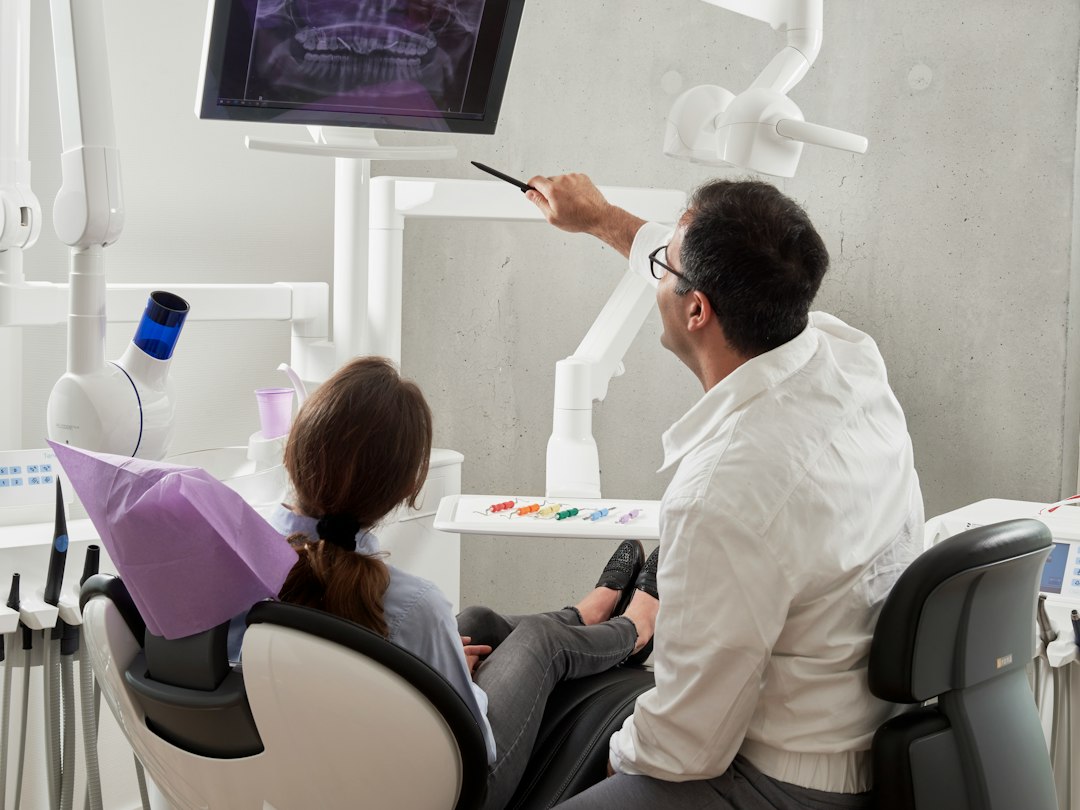
Dental imaging software: 10 Checks for Capture, Comparison, and Record Export
Choosing dental imaging software means checking how the practice captures, identifies, stores, views, and shares images. The product must fit the exact devices and record workflow in use. A viewer that opens one sample image does not prove a reliable path from acquisition to the correct patient chart.
This article explains ten buying checks, a fictional imaging trial, and a migration plan. It covers 2D images, photographs, 3D data where relevant, integrations, exports, and recovery. Qualified dental professionals must determine clinical use, imaging protocols, and the suitability of diagnostic displays and tools.
Separate image capture, viewing, and practice management
A dental practice may use one system for appointments and charts, another for image acquisition, and additional tools for viewing or specialized work. List those applications and identify the source of patient information and original image data.
Next, define what you need dental x ray software to do. Capturing from an intraoral sensor differs from importing an outside study or viewing 3D data. Some products combine those functions, while others require modules or partner applications.
For a product example, DEXIS Imaging Suite’s overview describes image capture, practice-management integration, and optional modules. Verify the exact devices, versions, and modules in your quote rather than infer universal compatibility.
1. Test the actual sensor and acquisition device
Write down each sensor, camera, scanner, and imaging device with its model and software version. Ask the vendor for supported combinations and required drivers. “Open integration” can still have specific limits and extra costs.
Next, connect the intended test hardware and acquire a fictional or appropriate nonpatient test dataset under qualified supervision. Confirm the workflow, labeling, storage, and any limitations. Do not rely only on files the vendor prepared in advance.
Also ask who supports the connection. If the hardware and software vendors differ, the practice needs a clear lead when capture fails. An interface dispute should not leave staff guessing which supplier to call.
2. Verify patient context before capture
The software should make the selected patient clear at the point of acquisition. A bridge from the practice-management system needs to carry the right identifier and context. A similar name is not a reliable match.
For example, test two fictional patients with the same surname. Launch imaging for each and inspect where the captured test file appears. Then test a corrected demographic record and confirm how the change propagates.
Next, examine the wrong-patient correction process. Staff should follow a controlled review that preserves history. A casual move between folders should not hide the original association or bypass the required verification.
3. Keep image type, date, and context visible
A radiograph, clinical photo, scan, and imported document are different records. The system should preserve their relevant type, source, date, and links. Users should not need to infer the context from a thumbnail alone.
Next, test outside images and files without complete metadata. The practice needs an approved intake and review route. Import should not make uncertain information look newly acquired by the practice.
Also distinguish acquisition date from import date. Both may matter, and replacing one with the other can make a historical image appear current. Qualified staff should decide how the display presents that distinction.
4. Preserve originals and record enhancements
Viewing tools may adjust brightness, contrast, orientation, or annotations. The practice needs to know what changes the display and what changes the stored file. Preserve the original record and an understandable history under the approved policy.
Ask the vendor to show an original image, an adjusted view, and an annotated copy. Then export them and inspect the labels. Another authorized clinician should be able to distinguish the versions.
Next, check compression and resolution. Qualified users should validate whether the intended workflow preserves the information needed for its clinical purpose. A smaller file is not automatically an acceptable substitute.
5. Compare prior images with their source context
A comparison view can help clinicians review history, but the software should show dates, source, and relevant acquisition context. It should not imply that every image uses the same scale, orientation, or conditions.
For example, a photo and a radiograph may appear in the same record while serving different purposes. Clinicians must decide how to interpret them. The software’s role is to make the underlying information and limits clear.
Next, retrieve a prior image from a long fictional history. Include duplicate imports and one corrected record. Users should identify the appropriate source without opening every file.
6. Validate 3D and specialized tools separately
A product that handles 2D images may need another module for 3D datasets or specialized planning. Confirm supported formats, devices, hardware, and intended uses. Qualified professionals must evaluate the clinical tools and any applicable regulatory status.
Next, test a representative nonpatient dataset. Check loading, navigation, measurements where appropriate, export, and performance on the intended workstation. A powerful sales computer may hide limits on the practice’s equipment.
Also distinguish a general viewing feature from a tool intended for a specific clinical planning task. Do not assume that software can perform a function safely merely because it can display the data.
7. Examine DICOM and interoperability in practice
DICOM is a standard for medical image information and exchange. Support for the standard can help, but products may implement different capabilities and workflows. Ask for the relevant conformance information and test actual exchange.
The ADA’s digital dentistry resources explain the role of DICOM and imaging interoperability in dentistry. Use the standard as a basis for specific questions rather than accept a logo as proof that every exchange will work.
Next, send a test export to an independent compatible destination. Confirm image data, identifiers, metadata, and the recipient’s ability to open it. A JPEG screenshot is not equivalent to every original imaging dataset.
8. Make sharing and patient copies usable
A record request needs the correct recipient, authorized scope, file version, and secure delivery method. The practice should know what it sent and when. A link should not reveal unrelated records or remain accessible beyond the approved settings.
Next, test the recipient journey on a separate device. Check download access, file types, and any viewer requirements. Sending a large file that the recipient cannot open does not complete the practical handoff.
Our guide to a document management system explains general sharing and version control. Imaging adds the need to preserve the original data and useful metadata in the transfer.
9. Review AI features as a separate purchase
Some products offer automated findings or image analysis. Confirm the exact intended use, supported image types, version, and applicable status with qualified clinical and regulatory reviewers. Do not treat every AI feature as interchangeable.
Next, ask how the tool marks its output and how a clinician reviews it. The system should distinguish an automated suggestion from the clinician’s documented assessment. Preserve the source image and the relevant version information.
Also check data use and third parties. The practice needs to understand where images go, which agreements apply, and what the provider may do with the data. Review those terms before enabling a new feature.
10. Prove backup and restoration
Backup needs to cover the image files, database, patient relationships, settings, and any required licenses or keys. A copied folder may not include everything needed to reopen the records. Ask the vendor to explain the full recovery process.
Then restore a fictional dataset to a test environment. Verify patients, dates, image sets, annotations, and original files. Open the record from the practice-management bridge as well as directly in imaging.
Also test downtime and local connectivity limits. Staff need an approved fallback and later reconciliation process. Qualified practice leadership should decide which activities may continue while the normal system is unavailable.
A trial from chart launch to outside export
Use fictional identities and nonpatient test data appropriate to the devices. Include a new acquisition, an outside import, a corrected demographic record, and a comparison study. Have the people who will use the system perform the tasks.
- Launch imaging from the correct fictional chart.
- Acquire test data through the supported device.
- Check identifiers, image type, dates, and source.
- Apply a viewing adjustment and preserve the original.
- Import an outside dataset without making it look newly acquired.
- Retrieve a prior image and inspect the comparison context.
- Correct an association through the controlled process.
- Export to an independent test destination.
- Restore the dataset and verify chart links.
Score each task as native, configurable, dependent on another module, or manual. Record the exact hardware and software versions used. This makes later compatibility promises easier to assess.
Check the practice-management bridge
The bridge should launch the right patient and avoid unnecessary repeated entry. Confirm whether it synchronizes demographics, creates records, or simply opens the imaging app. Those functions have different correction and duplicate risks.
For a related product workflow, see our article on Eaglesoft Dental. Use the same principle with any practice system: verify the exact imaging connection rather than assume the products share one database.
Next, test a changed patient identifier and a duplicate merge under the approved process. Confirm that both applications retain the right records and history. Assign responsibility for resolving mismatches.
Migrate images with their identifiers
First, inventory the file types, storage, patient mapping, and export capabilities in the old system. Identify proprietary formats and any conversion needed. Preserve originals where required and validate the conversion for its intended use.
Next, move a representative sample. Our data migration framework explains staged checks. Compare patient links, image counts, dates, metadata, and usability rather than only the total storage size.
Then agree on access to records that remain in the old system. Keep the archive secure and usable for the applicable retention needs. Do not end the old contract before testing how users retrieve that history.
Compare cost over the whole setup
Include capture licenses, 3D modules, bridge software, workstations, storage, cloud transfer, migration, training, support, and any AI services. Use the same devices and user count for every proposal.
Next, confirm upgrade and exit terms. Ask how a driver or operating-system change affects support. For broader development context, our article on custom healthcare software development explains why integration and governance need explicit boundaries.
Finally, keep the trial dataset and script for future checks. A new version should not reach live use without the appropriate review of capture, patient context, and export behavior.
Check performance across the actual rooms
Test the software where staff will use it, including capture rooms, review stations, and any remote site. Network, storage, device drivers, and workstation hardware can affect the experience. A smooth laptop demo may not reveal those limits.
For example, several users opening large records at once can behave differently from one person viewing a small image. Record the test conditions and ask the vendor to explain the supported configuration.
Next, inspect the user feedback during a slow save or upload. Staff should know whether the action completed and whether a retry could create a duplicate. Clear status helps prevent accidental repeated entry.
Finally, document the approved hardware and software versions. Use that list when planning upgrades so an operating-system change does not unexpectedly interrupt capture.
Frequently Asked Questions
Will imaging software work with every sensor?
Do not assume so. Confirm the exact model, driver, operating system, software version, and any required module. Test the intended setup before purchase.
Is a screenshot the same as an original image export?
No. A screenshot may lose metadata, detail, or other dataset information. Define the recipient’s need and test an appropriate export under the practice’s approved process.
What is the strongest migration check?
Open representative records in the new system and verify patient links, dates, originals, metadata, and viewing. A matching file count alone does not prove usable records.
Choose for reliable capture and usable records
Dental imaging software should connect the right device, patient, image, and recipient while preserving the original context. Test the actual setup and exports before buying. Then migrate through verified samples and maintain a recovery process that works.